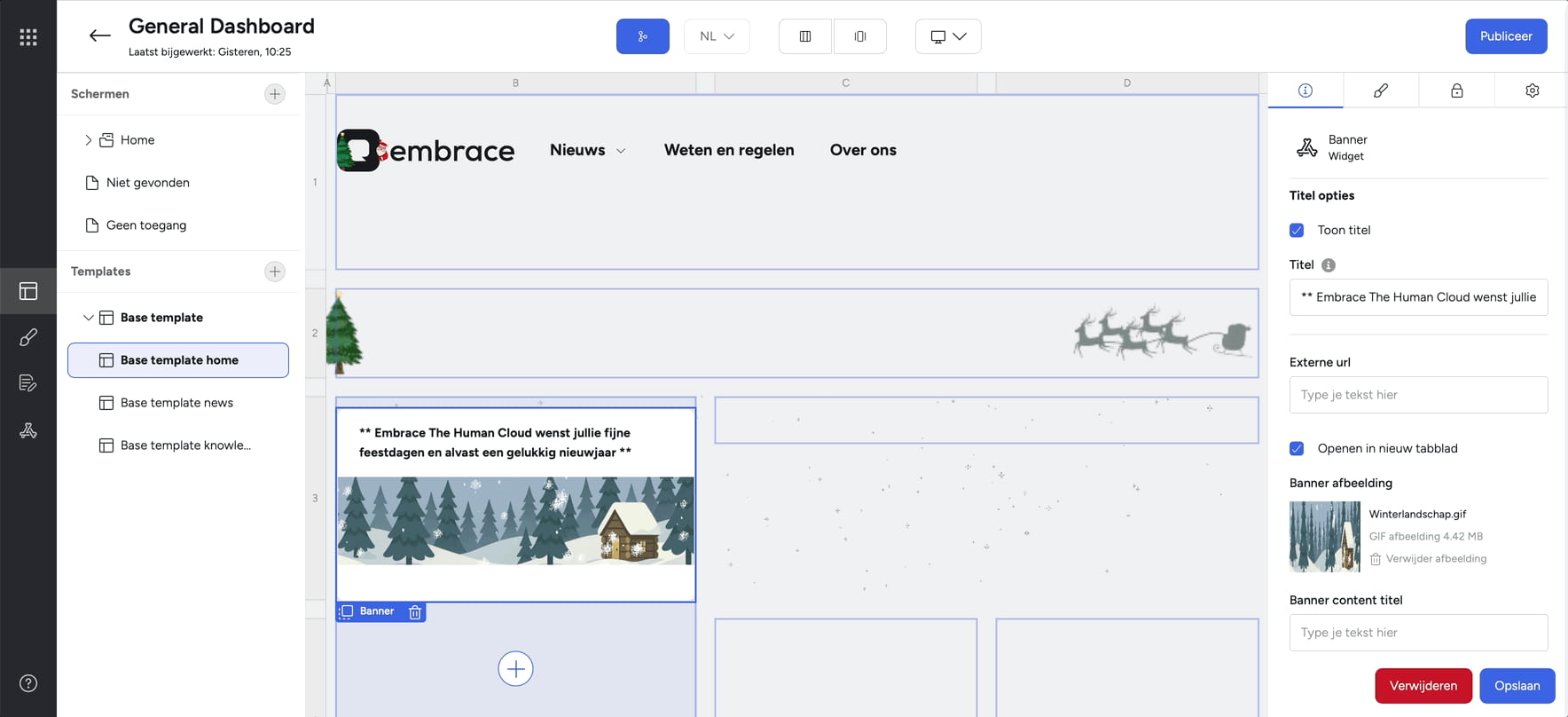
The holidays are the perfect time to wrap your intranet in a warm, magical atmosphere. Adding Christmas elements and activities makes the workplace cozier and helps your organization move forward. It increases the engagement of colleagues, puts hidden talents in the spotlight and invites more interaction. A festive one intranet In addition, it often leads to more visitors and more involvement in your internal communication.
We'd love to show you what options you have to temporarily modify the existing dashboard. Keep the whole thing calm, so that it remains clear and pleasant for everyone. As an administrator, you make the changes in the Embrace portal builder.
Customize the news banner
Give any home page a winter makeover by customizing the background banner in the news template.
Daily Christmas boost: a Christmas message or photo of the day
Create a special Christmas group where everyone can share a Christmas message or festive photo. Think photos of beautifully decorated workplaces or a funny Christmas sweater. This provides a happy dose of Christmas cheer on the timeline.
Christmas Angel of the Week
Put your colleagues in the limelight! Have colleagues create a digital “thank you wall” where they can thank each other for their efforts over the past year. A wonderful way to show appreciation and spread positivity during the holidays. Collect all the Christmas angels in a widget on the home page.
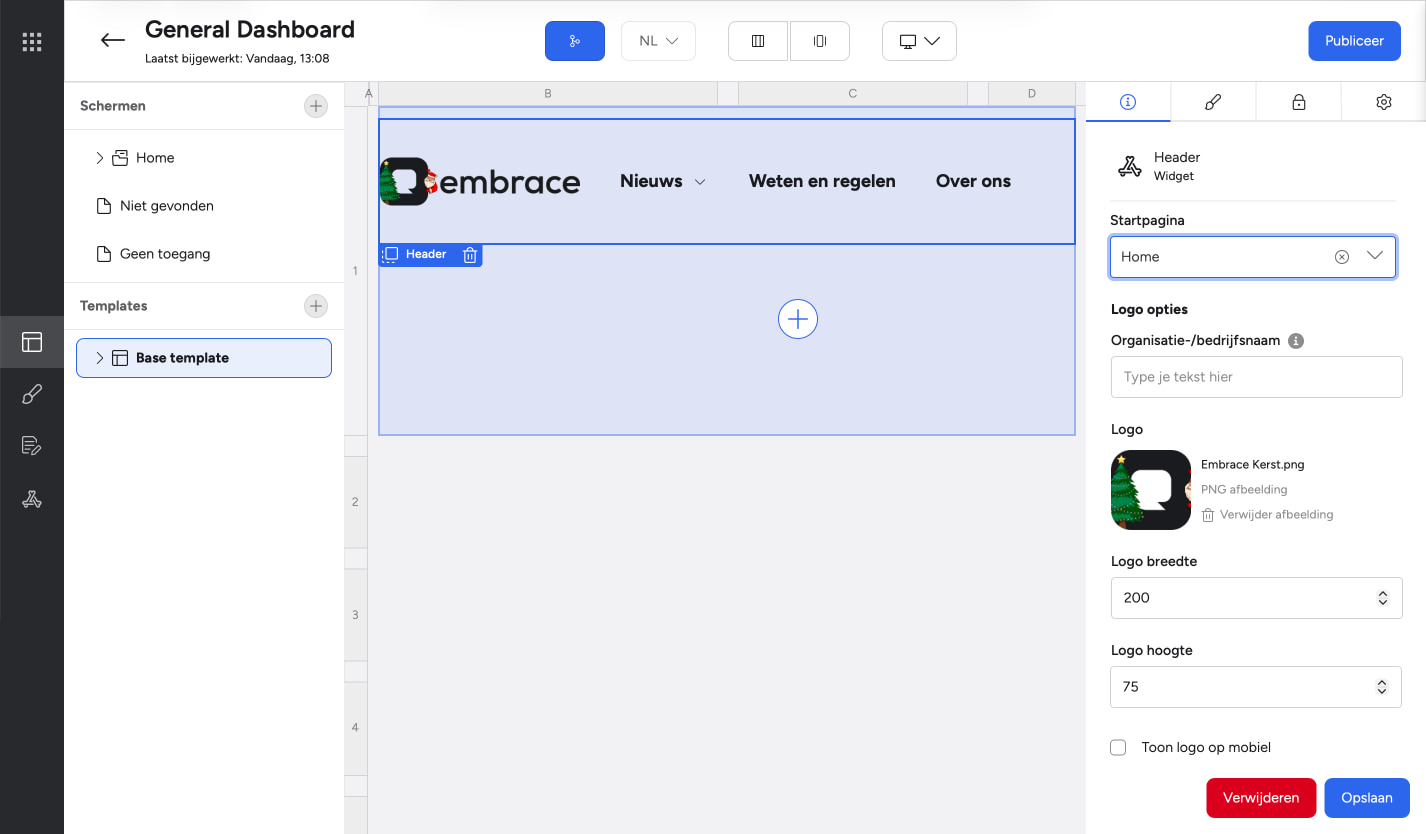
Customize Logo*
If you have a logo for special moments and holidays, you can easily change the default logo to match the mood of the moment.
- Go to the Portal Builder
- open General Dashboard
- Under Templates, click the Base template (or on the Home template if there is no folder structure)
- Selected Header widget. On the right side, the settings menu opens
- Click on the logo to choose a different logo
- Pass the logo width and height on, for example 200 wide and 75 high
- Click Save and then on publicizing. The logo is shown in the mobile browser, but not in the mobile app
Place an image behind news hero widget*
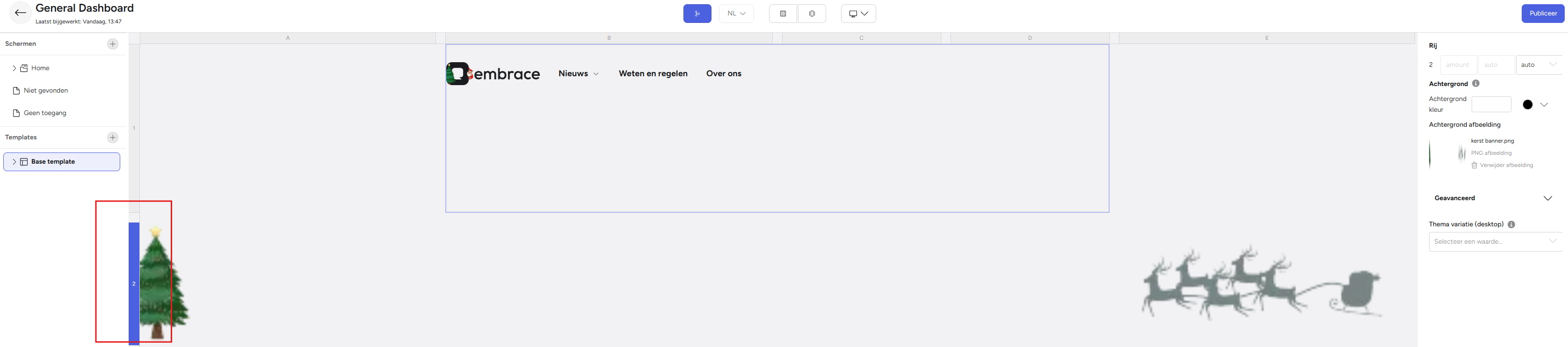
If you want to give the dashboard a different atmosphere during special times and holidays, you can, for example, place a header image behind the news hero widget.
- Go to the Portal builder
- open General Dashboard
- Under Templates, click the Base template (or the Home template if there is no folder structure)
- Select the row where the news hero widget is placed. This is often the second row. You select the row by clicking on the block before the row, usually the block with the 2 on it. On the right side, the menu with the settings for the row opens.
- Click Choose an image to add an image
- Click Save and then on publicizing. The header image is not displayed in the mobile app or mobile browser. You can see the image well on wide screens, but on narrow screens, the image (partially) disappears
Place an animated image behind the timeline*
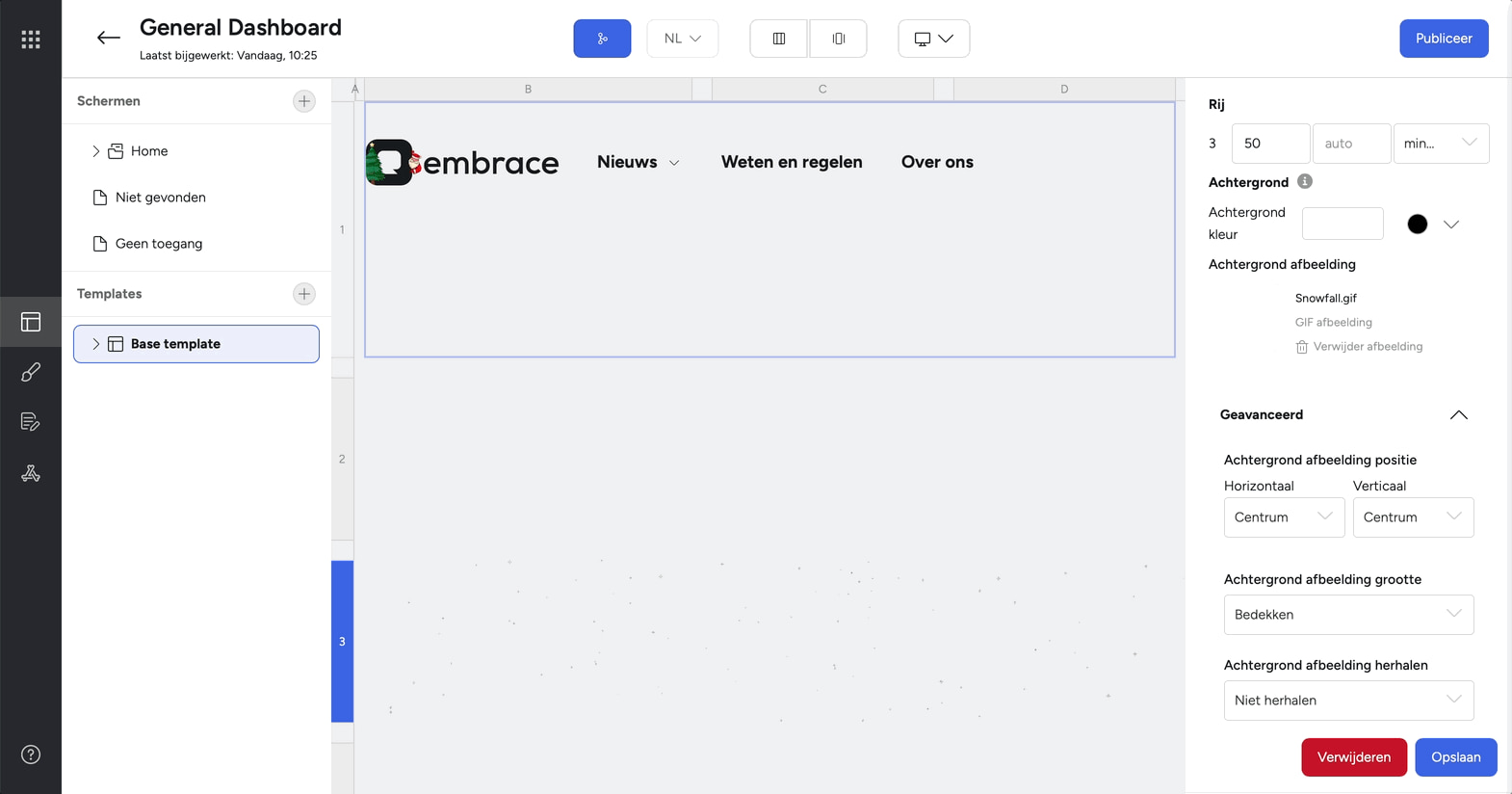
If you want to change the mood of the dashboard during special times and holidays, you can place an animated image behind the timeline.
- Go to the Portal builder.
- open General Dashboard.
- Under Templates, click the Base template (or the Home template if there is no folder structure)
- Select the row where the timeline is placed. This is often the third row. You select the row by clicking on the block in front of the row, usually the block with the 3 on it. On the right side, the menu with the settings for the row opens
- Click Choose an image to add an animated image (for example, a gif)
- Click Save and then on publicizing. The animated image is not displayed in the mobile app or mobile browser. You can see the animation well on wide screens, but it (partially) disappears on narrow screens
Post a special message*
You can place a widget with a special message in various places. In this example, we choose a banner widget above the timeline.
- Go to the Portal builder
- open General Dashboard
- Under Templates, click the Base template (or under Screens on Home)
- Click on the area where you want to place the message so that a plus sign appears
- Click the plus sign
- Find the banner widget and click on it
- Click Install.
- Add Title add the special message
- Under Banner image, click Choose an image and add an image
- Click Save and then on publicizing. The special message is shown in the mobile browser, but not in the mobile app